 Mailroom
Help · Getting started
Getting started
Install Mailroom, add your account, and what’s worth knowing on day one.
- Install it. Download Mailroom from the Download page and drag it into your Applications folder. Install Mailroom has the details.
- Add your account. Choose Mailroom › Add Account… and type your address. Mailroom finds the server settings; most providers want an app password. See Add an email account.
- Read your mail. All Inboxes shows new mail from every account, grouped into conversations. The last 90 days arrive first, and older mail follows in the background. See Reading and organizing mail.
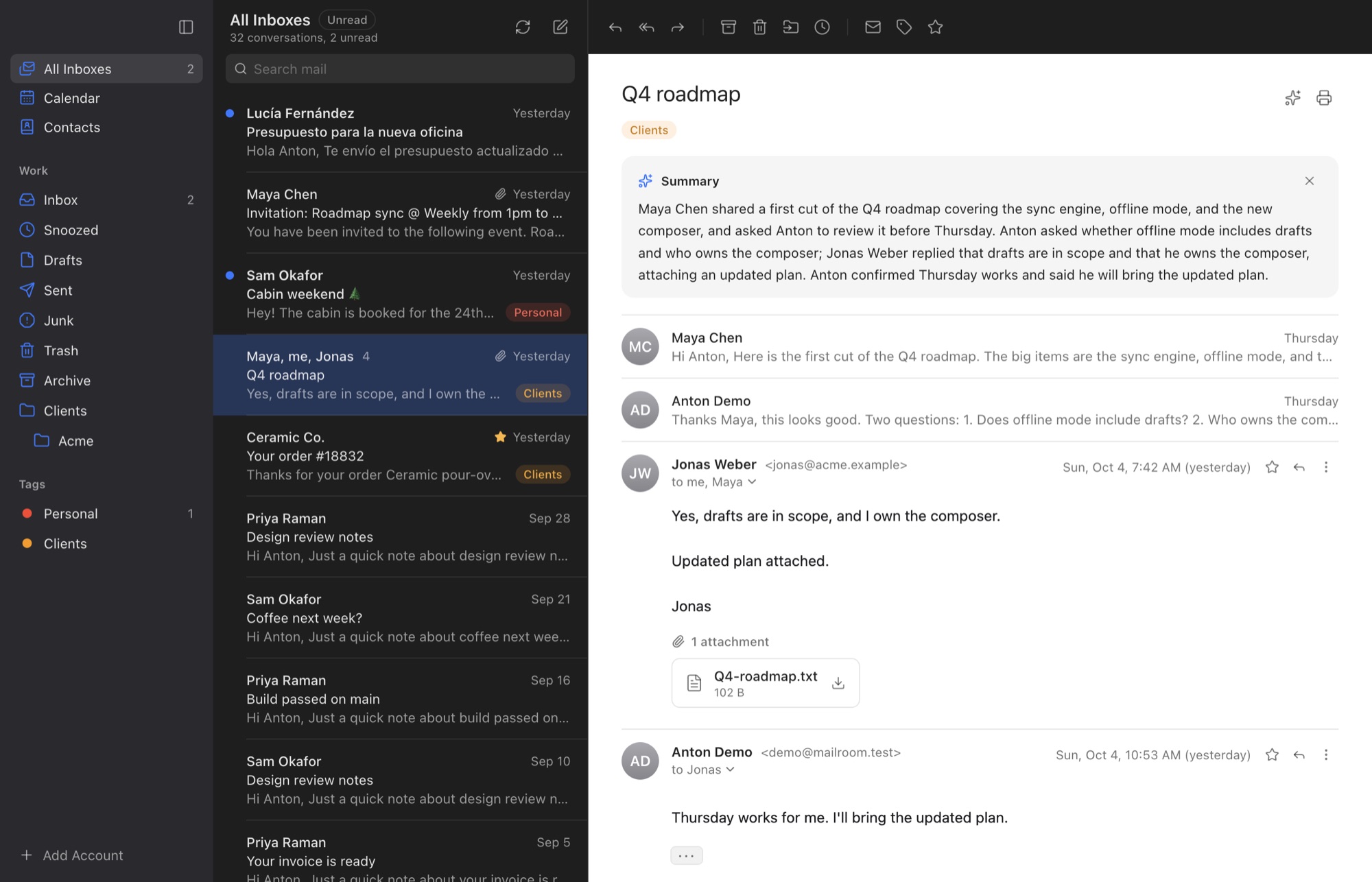
Worth knowing on day one:
- Coming from Apple Mail or another app? There’s nothing to import. Add the same accounts and Mailroom downloads your mail and folders from the server. Only mail kept on your Mac alone, such as Apple Mail’s On My Mac mailboxes, stays where it is.
- Gmail’s keyboard shortcuts work: j and k to move, e to archive, r to reply. Press ? to see them all. See Keyboard shortcuts.
- Undo works for send, archive, delete and move. See Undo.
- Snooze a conversation until later with b. See Snooze.
- Search with Gmail’s words, like from: and has:attachment. See Search your mail.
- Your calendar sits next to your mail. Connect it in Settings › Accounts. See Connect a calendar.
- Make it yours: dark mode, text size and colours are in Settings › Appearance. See Dark mode, text size and colours.
Still stuck? or email asavytski@gmail.com. A person reads every message.