 Mailroom
Help · Calendar, contacts and tasks
Tasks
A to-do list next to your mail, and tasks made from emails with ⇧T.
Click Tasks in the sidebar, or press g then k. Type in Add a task and press Return. Click a task to add notes, a due date or a time, or to move it to another list.
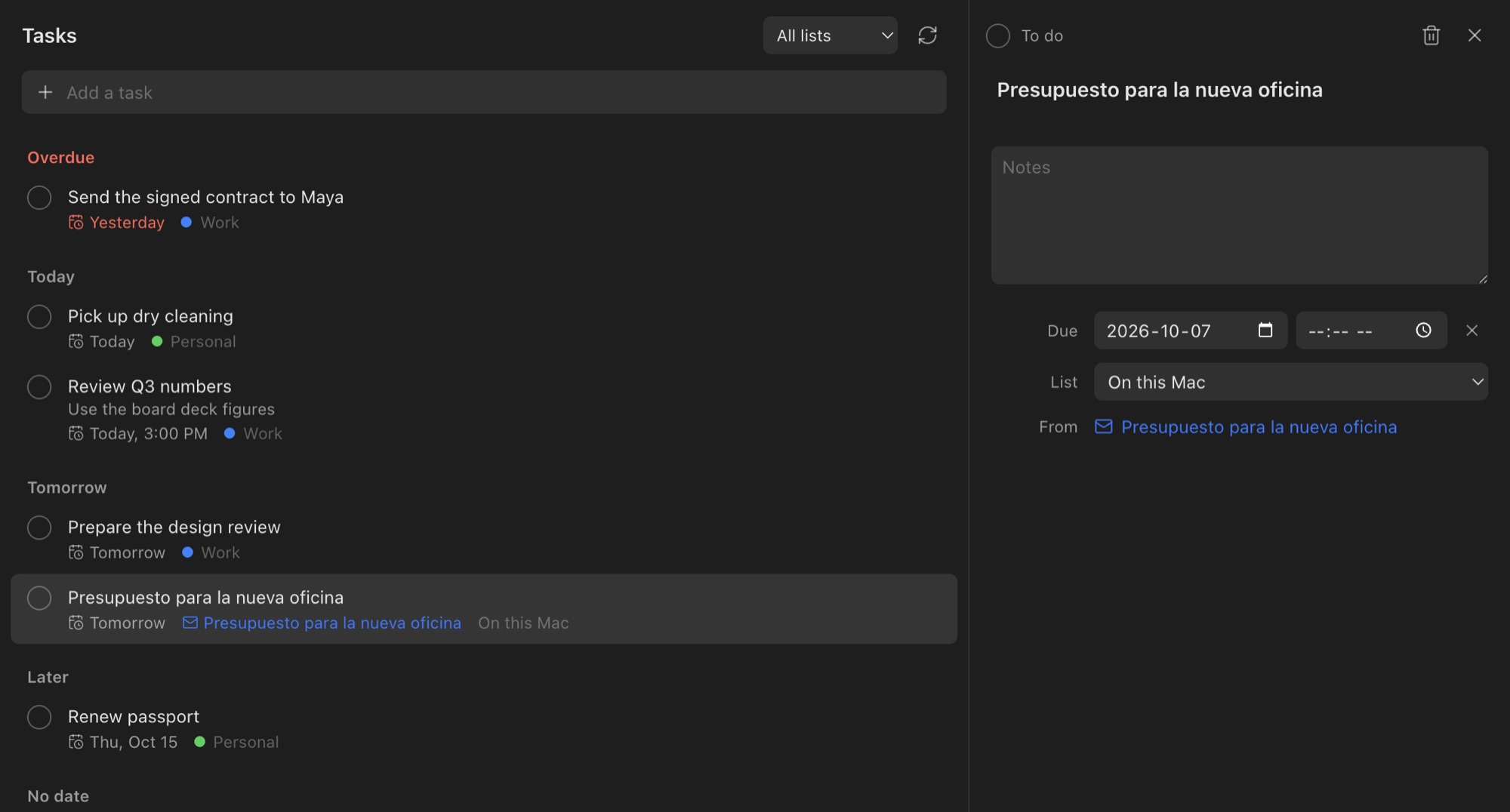
Tasks are grouped by when they’re due: Overdue, Today, Tomorrow, Later and No date. Click the circle to mark one done. Done tasks fold away under Completed, where Delete completed tasks clears them out. The number next to Tasks in the sidebar is how many are due today or overdue.
A task that repeats (one made on your phone, say) shows a repeat icon. Ticking it moves it on to its next date, as Reminders does on iPhone.
Turn an email into a task
Select an email and press ⇧T (the same as in Gmail), click the checklist button in its toolbar, or right-click it and choose Add to Tasks. Change the title if you like, then pick when it’s due: no date, today, tomorrow, this weekend, next week, or a day of your own.
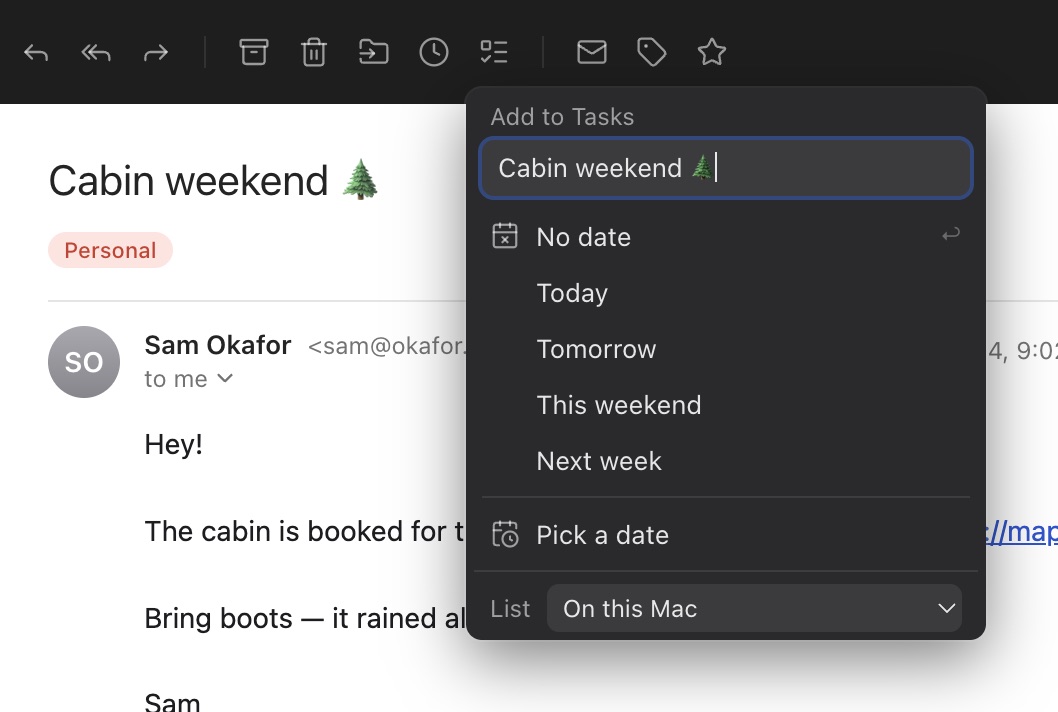
The task keeps a link to the email: click it to open the email again. Select several conversations first to make a task for each.
Where tasks are kept
- On this Mac: a list that’s always there, kept only on this Mac.
- On your calendar server: if an account’s calendar connects over CalDAV and the server keeps to-dos too (Nextcloud does, for example), its task lists show in Tasks. Changes go both ways, so your phone sees them, and if a task changed in both places at once, both changes are kept.
Google Tasks, Microsoft To Do and Apple’s Reminders don’t use CalDAV, so they don’t show up yet.
Reminders
A task due at a time sends a notification then, while Mailroom is open. If Mailroom was closed, you get it when it next opens that day. Turn reminders off in Settings › General › Notifications, and hide Tasks from the sidebar in Settings › Appearance.
Still stuck? or email asavytski@gmail.com. A person reads every message.