 Mailroom
Help · Mail
Reading and organizing mail
Conversations, All Inboxes, unread, star, archive, Junk, attachments and printing.
All Inboxes (⌘1) shows new mail from every account together. Each account’s folders are in the sidebar.
Conversations. Replies, including yours from Sent, show together as one conversation, like Gmail. To list every message on its own, turn off Group messages into conversations in Settings › General.
Acting on mail. Select a conversation, then use the toolbar, right-click it, or press a key:
| Key | What it does |
|---|---|
| e | Archive |
| # | Move to Trash |
| ! | Move to Junk |
| s | Star or unstar |
| ⇧I or ⇧U | Mark read or unread |
| v | Move to a folder |
| b | Snooze |
Those single keys are Gmail’s, and you can turn them off. The Mac shortcuts in the Message menu always work.
Several at once. ⌘-click or ⇧-click rows, or tick the box at the top of the list to select them all. Everything above works on a selection, so that’s also how you mark all as read.
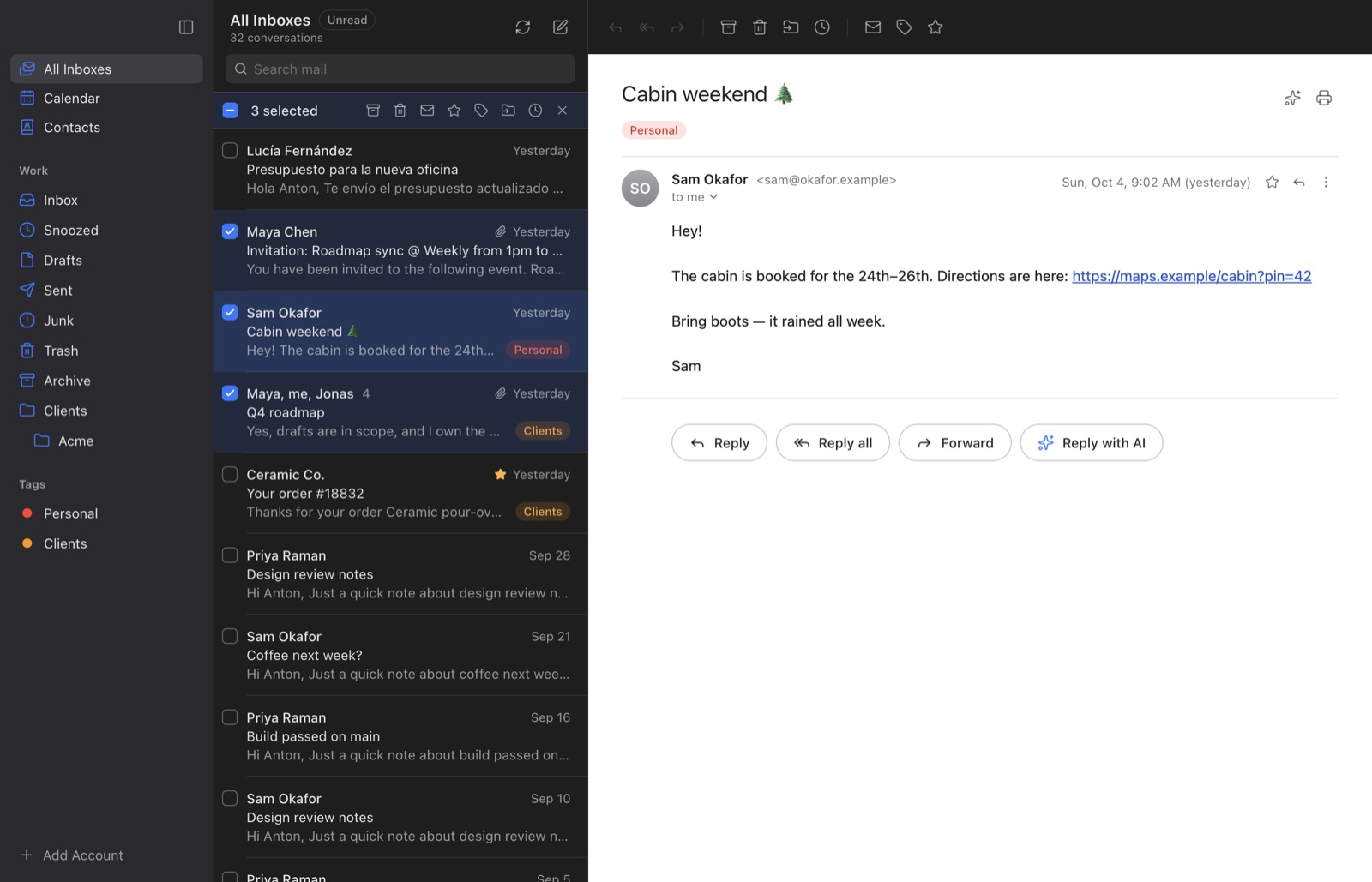
Unread only. The Unread switch at the top of a mailbox hides what you’ve read.
Junk. Moving mail to Junk puts it in your provider’s Junk folder, and most providers learn from that. Mailroom doesn’t block senders itself; most providers let you block an address on their website.
Attachments. Click one to preview it with Quick Look, or save it. Mailroom never opens an attachment in another app for you, so nothing runs by accident.
Unsubscribe. When a newsletter supports it, an Unsubscribe button shows next to the sender.
Print or save as PDF. Choose File › Print… (⌘P), then PDF in the print window. File › Save As… keeps the whole message as an .eml file.
Offline. Mail Mailroom has already downloaded, such as messages you’ve opened, is there without a connection. What you do offline, like archiving or sending, waits and goes out in order once you’re back.
Still stuck? or email asavytski@gmail.com. A person reads every message.