 Mailroom
Help · Chats
iMessage and SMS
Your Messages conversations in Chats. Mailroom needs Full Disk Access to read them.
Chats can show your conversations from Messages on this Mac: iMessage, and SMS and RCS texts if your iPhone forwards them to your Mac.
Turn it on
- Make sure Messages is signed in on this Mac and shows your conversations.
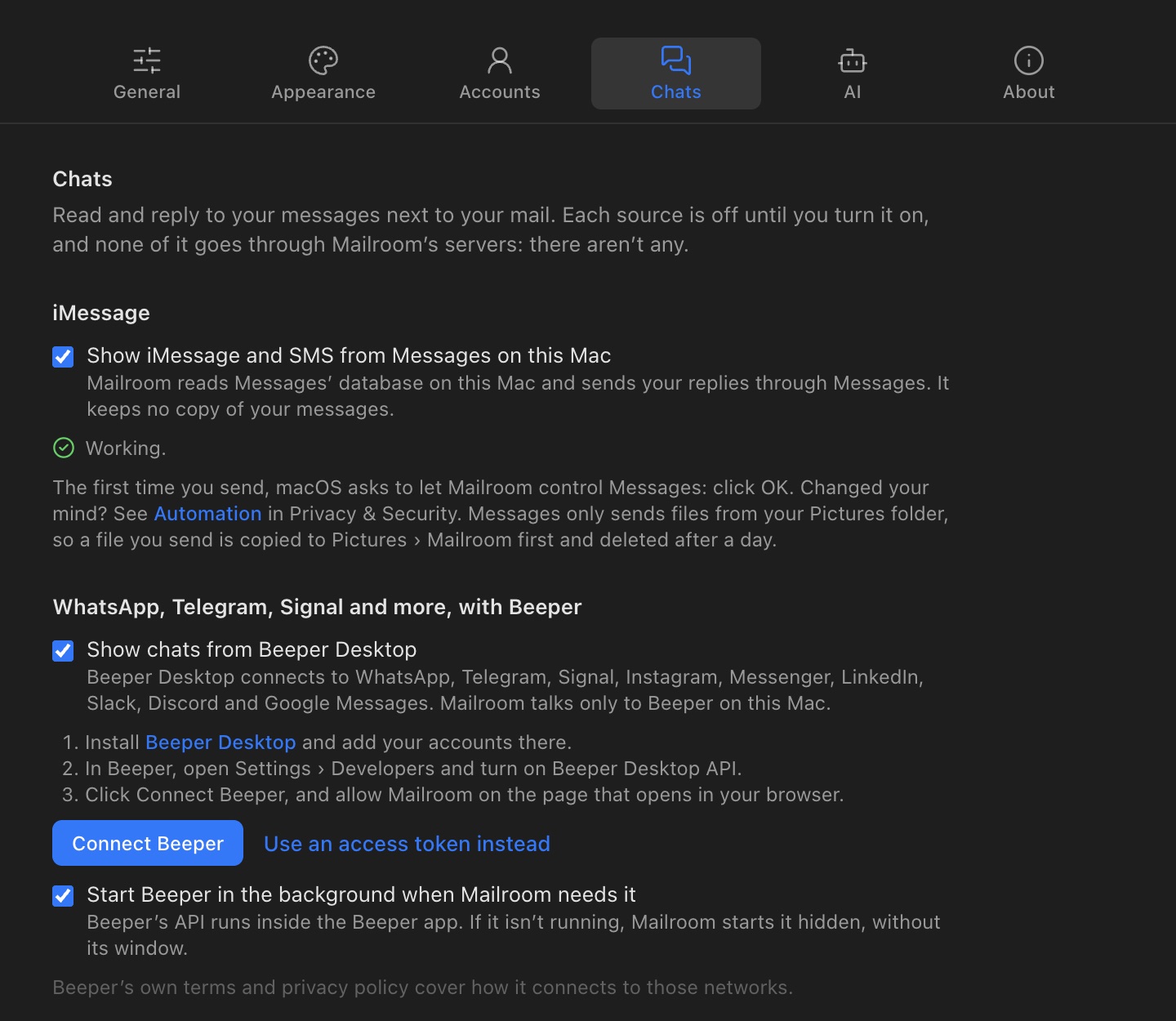
- In Mailroom, open Settings › Chats and turn on Show iMessage and SMS from Messages on this Mac.
- Click the System Settings › Privacy & Security › Full Disk Access link that appears, and turn on Mailroom. If it isn’t in the list, click + and choose it from Applications.
- Quit Mailroom and open it again.
Why Full Disk Access? macOS keeps your messages in a protected database, and Full Disk Access is the only permission that lets another app read it. Mailroom reads only that database, and the attachments you open. It reads them while Mailroom is open, to show your chats and count unread ones, and keeps no copy.
Sending
Mailroom sends your replies through Messages, so they go out from your Apple Account as usual. The first time you send, macOS asks whether Mailroom may control Messages. Click OK. If you clicked Don’t Allow, turn it back on in System Settings › Privacy & Security › Automation, under Mailroom.
Messages on recent macOS only sends files from your Pictures folder, so each file you send is copied to Pictures › Mailroom first and deleted after a day.
To send SMS to people who don’t have iMessage, turn on Text Message Forwarding for your Mac on your iPhone, in Settings › Apps › Messages.
Names
Mailroom shows the names from your contacts in Mailroom. A number or address that isn’t in your contacts shows as it is. See Contacts.
Read and unread
Messages keeps its own read state, and Mailroom can’t change it. A chat you read in Mailroom stops counting as unread in Mailroom, but Messages, on your Mac and your iPhone, shows it as unread until you open it there.
If something isn’t working
- Mailroom says it needs Full Disk Access, but it’s turned on: quit Mailroom and open it again. If it still says so, turn Mailroom off and on again in Full Disk Access.
- A message says Not Delivered in Messages: open it in Messages and resend it there. Check that Messages can send from this Mac.
- Sending says Mailroom isn’t allowed to control Messages yet: turn it on in System Settings › Privacy & Security › Automation, under Mailroom.
- Sending says Messages couldn’t send it: check that Messages is signed in on this Mac and can send a message itself.
- A photo doesn’t open: it may not have downloaded to this Mac yet. Open the conversation in Messages once, then try again.
Still stuck? or email asavytski@gmail.com. A person reads every message.