 Mailroom
Help · Chats
WhatsApp, Telegram, Signal and more
Other chat networks in Chats, through the Beeper Desktop app on your Mac.
Mailroom doesn’t connect to WhatsApp and the other networks itself. Beeper Desktop does: it’s a separate app that connects WhatsApp, Telegram, Signal, Instagram, Messenger, LinkedIn, Slack, Discord and Google Messages, and it lets apps on your Mac read and send through it. Mailroom talks only to Beeper, on your Mac.
Set it up
- Install Beeper Desktop from beeper.com, sign in, and add the accounts you want, such as WhatsApp.
- In Beeper, open Settings › Developers and turn on Beeper Desktop API.
- In Mailroom, open Settings › Chats, turn on Show chats from Beeper Desktop, and click Connect Beeper.
- Your browser opens a Beeper page asking whether to allow Mailroom. Allow it.
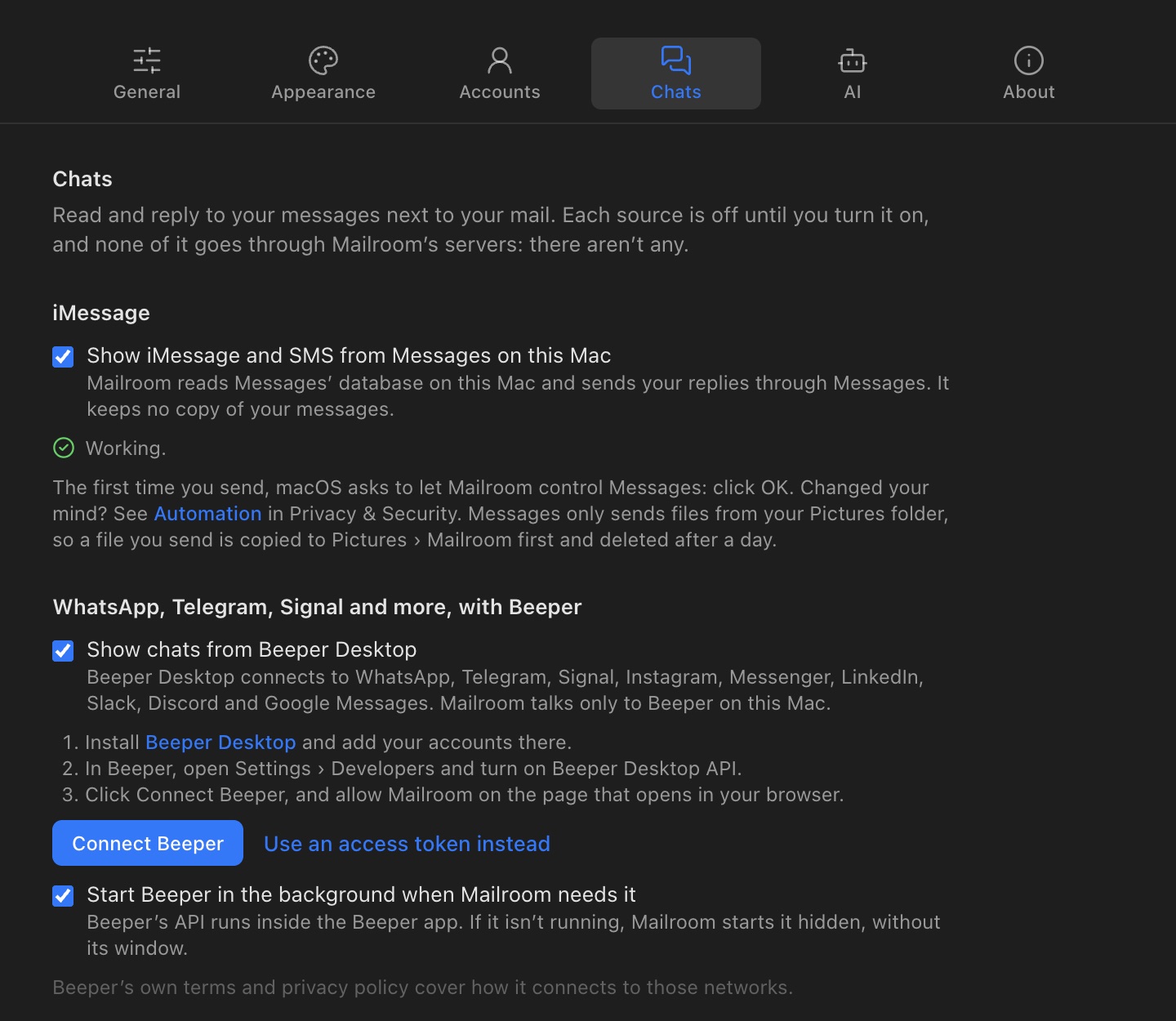
Your chats from those accounts show in Chats. Mailroom keeps its access encrypted on your Mac, with a key in your Keychain. To stop, click Disconnect, which also tells Beeper to stop accepting it.
If Connect Beeper doesn’t work for you, click Use an access token instead, and paste a token you make in Beeper’s Settings › Integrations (click + next to Approved connections).
Beeper doesn’t need to stay open
Beeper’s API runs inside the Beeper app. When it isn’t running, Mailroom starts it hidden, without its window. Mailroom checks Beeper for new messages every minute while it’s open, so if you quit Beeper, Mailroom starts it again. To keep Beeper from starting, turn off Start Beeper in the background when Mailroom needs it in Settings › Chats; then Beeper’s chats show while Beeper is open.
Good to know
- Read receipts: opening a chat marks it read in Beeper and on your phone. If your read receipts are on, the other person can see you’ve read it.
- iMessage in Beeper too? If you’ve turned on iMessage in Mailroom as well, Mailroom shows your iMessage chats once, from Messages.
- Their terms apply: Beeper’s terms and privacy policy cover how it connects to each network, and each network has its own terms. Mailroom only shows and sends what you ask it to.
If something isn’t working
- "Beeper is open, but its API is off": in Beeper, open Settings › Developers and turn on Beeper Desktop API.
- "Beeper didn’t accept Mailroom’s access": in Settings › Chats, click Disconnect, then Connect Beeper again.
- "Install Beeper Desktop": Mailroom couldn’t find Beeper on this Mac. Install it from beeper.com.
- "Beeper Desktop isn’t running": open Beeper, or turn on Start Beeper in the background when Mailroom needs it.
- "Beeper didn’t start": open Beeper yourself, then try again.
- "Something other than Beeper Desktop is answering at Beeper’s address": another app is using Beeper’s port on your Mac, so Mailroom won’t send it your access. Quit that app, then open Beeper.
- A chat is missing: check it’s in Beeper and not archived there. Mailroom shows your 100 most recent chats.
Still stuck? or email asavytski@gmail.com. A person reads every message.